
Budget Monitoring & Alert
Customized Budget
Customized Budget lets you set flexible spend alerts on any cost scope — a combination of groups, projects, accounts, resource groups, or services — with a threshold amount and multiple alert levels. LumiTure emails you when spend reaches each level. Customized Budget also supports Daily tracking, so you catch runaway spend within the day.
Availability
Section titled “Availability”Customized Budget is included on Starter and Standard. Every role can create budgets.
The alert list
Section titled “The alert list”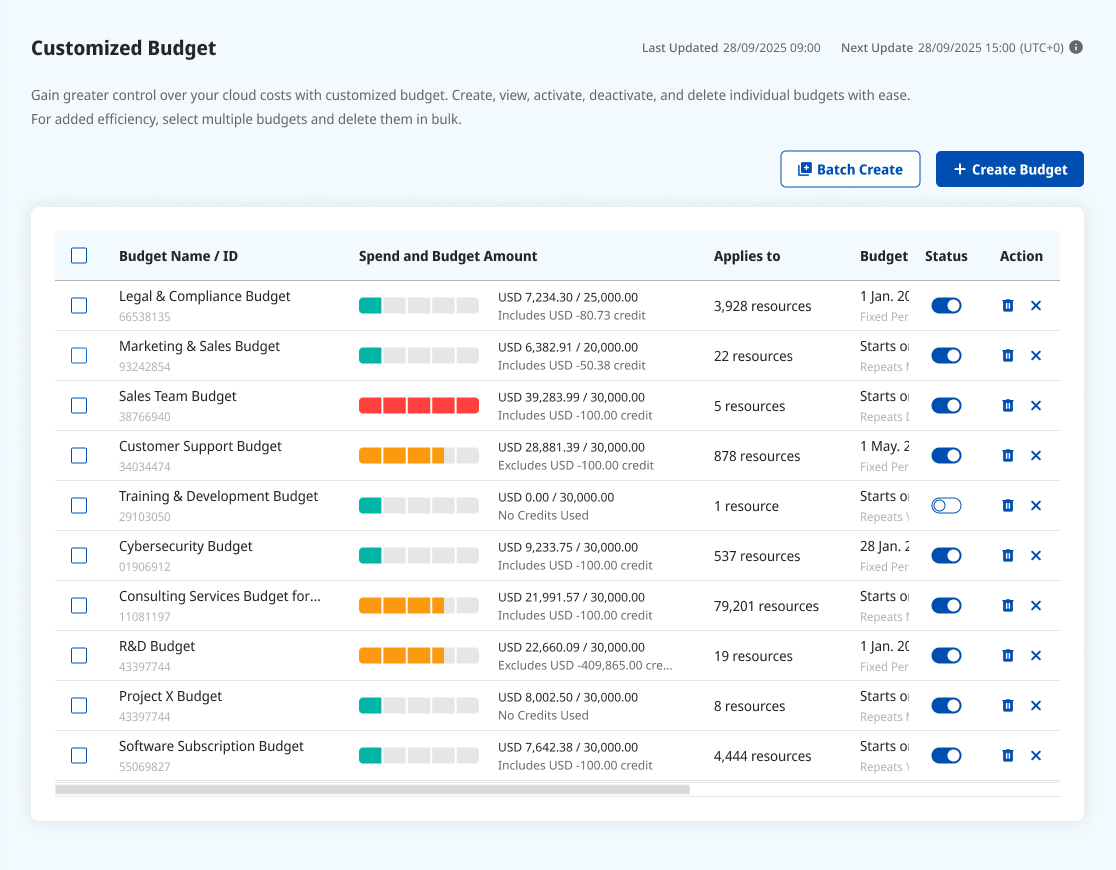
Each budget shows its Budget Name / ID (the ID is generated), Budget Period (Daily / Monthly / Yearly / Customized), Trigger Alerts at (the threshold percentages), Spend and Budget Amount (actual spend vs. threshold and the percentage used — shown as-is, so it can read over 100%), Applies to (the number of resources in scope), Status (Active / Inactive — click to toggle), and Action (edit or delete). The list is sorted by name; there’s no pagination or list search yet.
Creating a budget
Section titled “Creating a budget”A budget is defined in three parts.
Budget Settings
- Budget Name — up to 300 characters.
- Monitoring Period — Daily, Monthly, Yearly, or Customized. Daily / Monthly / Yearly repeat each cycle; Customized runs once. This is locked after creation (to keep historical data consistent).
- Budget Amount — a whole number greater than 0, up to 99,999,999.
- Include Credit — Yes or No (default No).
Alert Settings
- Alert Recipients — defaults to you; add others by searching existing organization emails (you can’t type free-form addresses). Multiple recipients are allowed. If a recipient’s account is later deleted, their notifications stop automatically.
- Status — Active or Inactive.
- Thresholds — alert when usage reaches N% of the budget (up to 5 levels, e.g. 50 / 70 / 90%; N is 1–1000). Each level shows its equivalent amount for reference.
Budget Scope
Scope is built from rules. Any matching rule includes a resource (rules are OR); within a rule, every condition must match (conditions are AND). A budget can hold several rules, and overlapping resources are de-duplicated. Each rule picks one cloud, then adds conditions: Group, Project / Account / Resource Group, and Service (services drawn from the past year’s bills).
Batch Create
Section titled “Batch Create”Apply one set of Budget and Alert settings to many targets at once: choose what to batch by (Groups / GCP Projects / AWS Accounts / Azure Resource Groups), then select the targets. LumiTure creates one budget per target, named Alert Name_<target>.
How alerts are sent
Section titled “How alerts are sent”An alert triggers the moment usage reaches a threshold and is sent by email, including the budget name, ID, the time window matched, the threshold percentage, the spend vs. threshold, and a link back to the platform. A threshold that’s already been sent won’t be sent again, and toggling a budget on/off without changing it doesn’t resend.
Permissions
Section titled “Permissions”Every role — Owner, Admin, and T1 / T2 Manager and Member — can create budgets and use Batch Create. The scopes and recipients you can pick are limited to what your role can see, and you currently see only the budgets you created.
Notes & edge cases
Section titled “Notes & edge cases”| Situation | Behavior |
|---|---|
| No resources authorized | Creating a Customized Budget is blocked (except Group-only scope). |
| A scope resolves to an empty set | No alert fires. |
| A scope item disappears while editing | Shown in red with a one-click option to remove the stale item (takes effect on Save). |
| Trying to change the Monitoring Period | Locked after creation. |
| Budget Amount over 8 digits | Capped at 99,999,999. |