
Optimization
Usage Optimization
Usage Optimization helps you cut waste by right-sizing over-provisioned cloud resources. Its core capability, Rightsizing, continuously compares how much each resource actually uses against what it’s provisioned for, recommends a smaller specification, and shows how much spend you’d avoid each month. Every figure you see is calculated by the platform from your own usage data, not generated by AI.
Availability
Section titled “Availability”Rightsizing is included on the Standard plan; it isn’t part of Starter. It also needs cloud usage data authorized for your organization (see Authorization List) — without it, there’s nothing to measure utilization against.
How Rightsizing finds waste
Section titled “How Rightsizing finds waste”Rightsizing watches how much each resource actually uses over a rolling observation window, sets aside short-lived spikes so a resource that is busy only occasionally does not look busy all the time, and flags the ones that stay well under what they are provisioned for. A flagged resource enters the recommendation list with a proposed smaller specification.
Your Admins set the utilization limits that decide what counts as over-provisioned, in Settings (see below).
The Rightsizing page
Section titled “The Rightsizing page”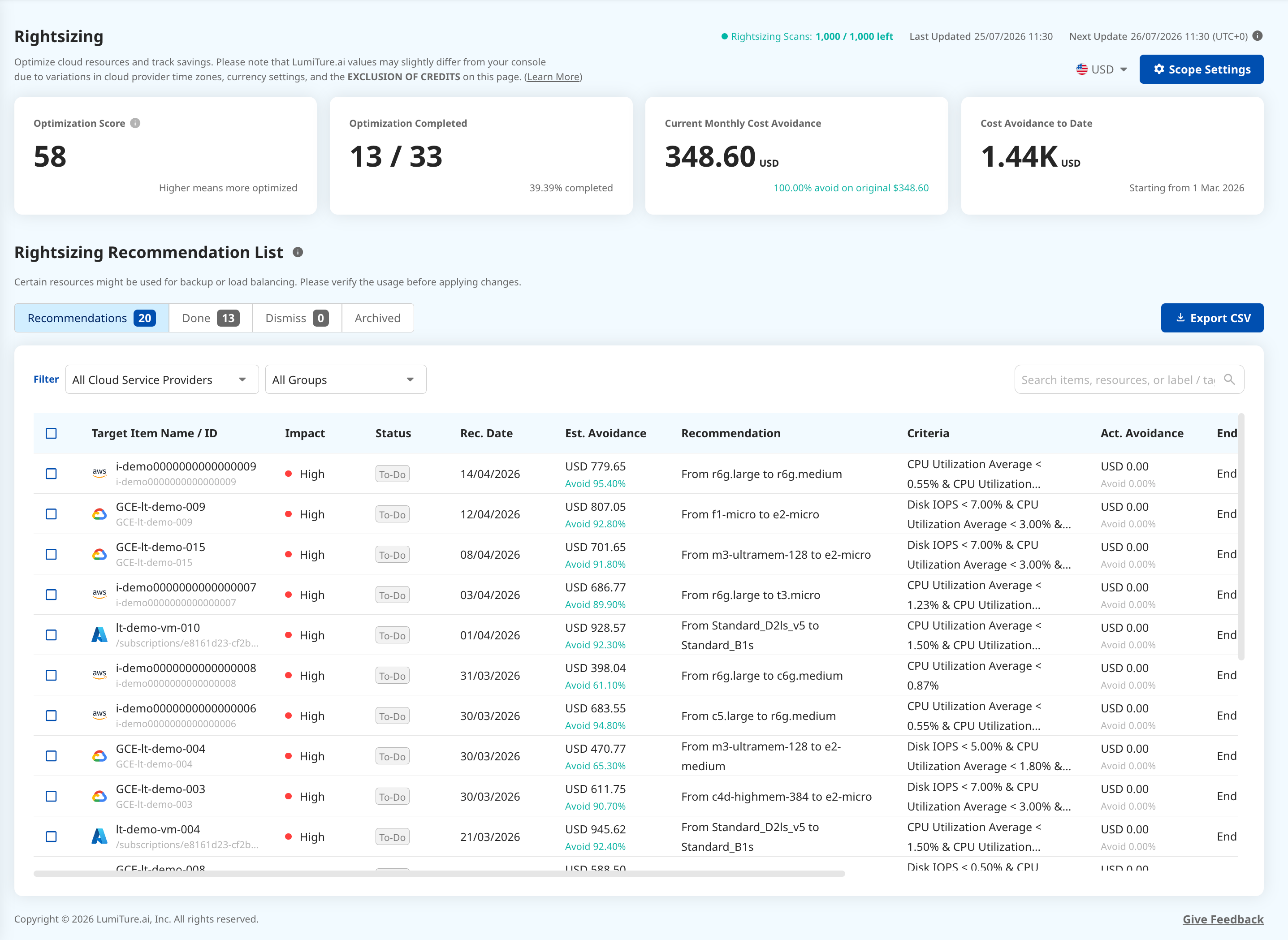
The page has two areas: a KPI board that summarizes your overall progress, and the Recommendation List where you review and act on individual items.
KPI board
Section titled “KPI board”| Card | What it tells you |
|---|---|
| Optimization Score | How optimized your environment is overall, from 0 to 100. Higher is better. |
| Optimization Completed | How many recommendations you’ve completed, out of the total generated. |
| Current Monthly Cost Avoidance | The cost you’re avoiding each month from changes you’ve applied, shown against the original spend. |
| Cost Avoidance to Date | Cumulative cost avoided since your start date. |
Recommendation List
Section titled “Recommendation List”The list is organized into four tabs, and an item moves between them as you act on it:
- Recommendations — open items waiting for a decision.
- Done — items you’ve applied; their actual cost avoidance is now being tracked.
- Dismiss — items you’ve set aside for now; they return automatically after the dismissal period.
- Archived — items you’ve taken out of detection.
Above the table you can narrow the list by cloud service provider or group, or search by item name, resource, or label / tag. Columns with a sort arrow (Impact, Rec. Date, Est. Avoidance) can be sorted, so you can lead with the biggest wins. Export CSV downloads whatever the list currently shows.
| Column | Meaning |
|---|---|
| Target Item | The resource name and its ID. |
| Impact | High / Medium / Low — how large the avoidance is. The thresholds are configurable in Settings. |
| Status | To-Do (not yet acted on), Changed (the spec has already been changed), or Error (the recommendation couldn’t be evaluated). |
| Rec. Date | When the recommendation was generated. |
| Est. Avoidance | The estimated monthly cost avoidance in currency and as a percentage of the original cost. |
| Recommendation | The suggested change, for example “From n2-standard-4 to n2-standard-2”. |
Reviewing a recommendation
Section titled “Reviewing a recommendation”Clicking any row opens the recommendation’s details, so you can judge it before acting.
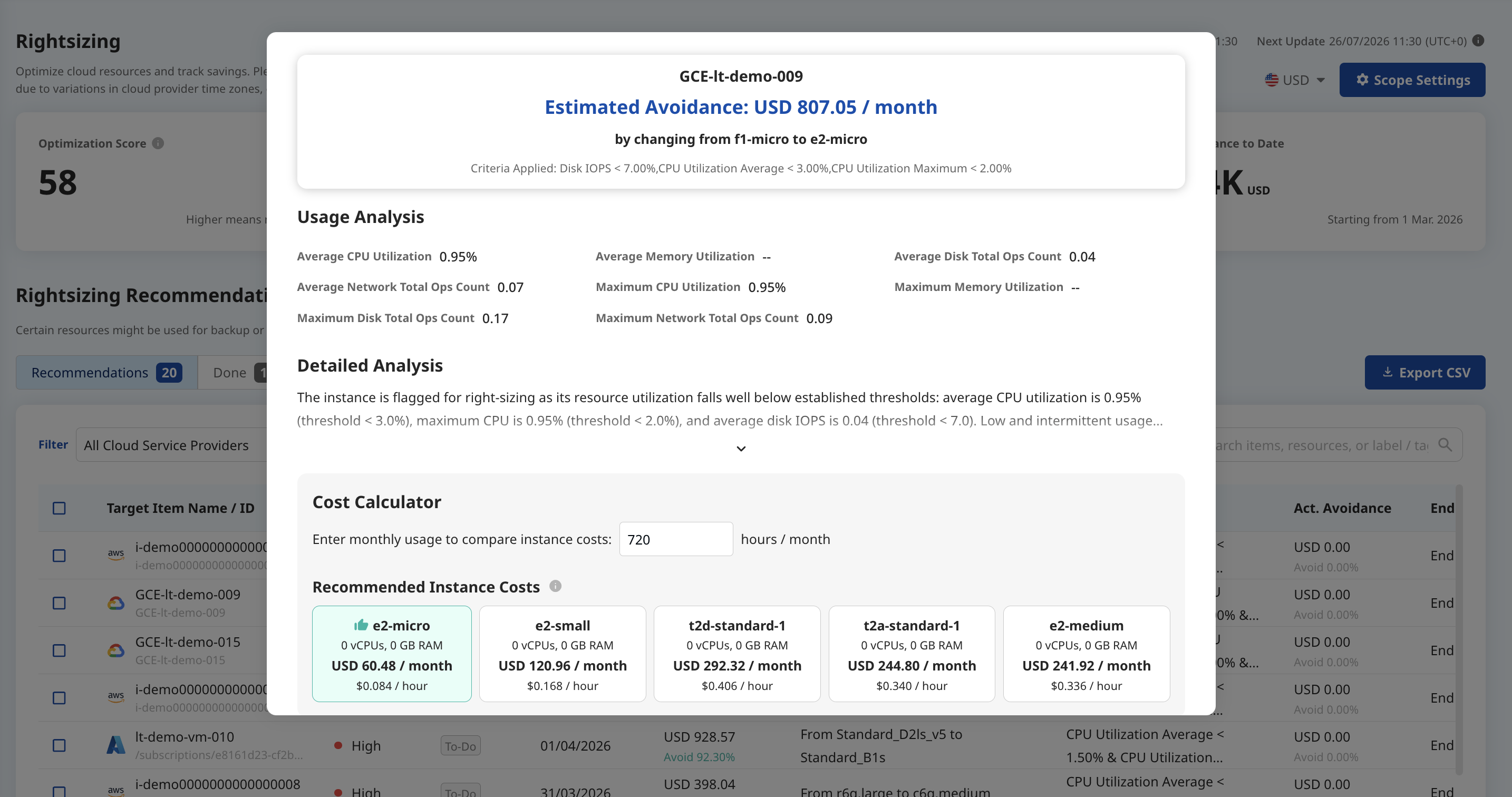
- Estimated Avoidance — the estimated monthly avoidance and the specific change, along with the criteria that flagged the resource.
- Usage Analysis — the average and peak CPU and memory utilization over the observation window, plus a short written analysis of the usage pattern. This is where you confirm the resource genuinely is underused — and not something you’re intentionally keeping spare, such as a failover or burst-capacity node.
- Cost Calculator — enter your expected monthly usage hours and LumiTure recalculates and compares the monthly cost of nearby instance types side by side (up to five). The most recommended type is highlighted in green. Use it to see the trade-off between size and cost before committing.
Taking action
Section titled “Taking action”Select one or more recommendations to reveal the action buttons at the top right of the list.
- Done — mark a recommendation as complete once you’ve resized the resource in your cloud console. It moves to the Done tab and LumiTure begins tracking the actual cost avoidance from that point. (LumiTure never changes your cloud resources for you — you make the change in the provider’s console.)
- Dismiss — set a recommendation aside. You choose a reason, and it’s hidden for the dismissal period (30 days by default) before returning to the list automatically. A dismissal can be undone.
- Archive — take a recommendation out of detection entirely; it won’t reappear unless the resource’s instance type changes. Archived items can later be cleared — a permanent delete that asks for a second confirmation.
- Export CSV — download the current, filtered list.
Settings — Scope & Criteria (Owner / Admin)
Section titled “Settings — Scope & Criteria (Owner / Admin)”Admins control what Rightsizing scans and how strictly it decides. The Settings entry is only visible to Owner / Admin.
- Scope — defines which resources are in play. You can create up to 3 scopes, and they cannot overlap (a resource belongs to only one scope at a time). Each scope selects accounts, projects, or resource groups, per cloud.
- Criteria — the detection thresholds: the average and peak utilization limits a resource must stay under to be flagged.
- Advanced — the Dismissal Period (how long a dismissed item stays hidden; default 30 days), the End of Tracking horizon (monthly / quarterly / yearly / custom — how long a Done item keeps accruing avoidance), and the Impact thresholds that define High / Medium / Low, by amount or percentage.
Permissions
Section titled “Permissions”| Role | Access |
|---|---|
| Owner & Admin | Full access, including Scope and Criteria settings |
| T1 / T2 Manager | Read-only (filters remain interactive) |
| T1 / T2 Member | Read-only |
Notes & edge cases
Section titled “Notes & edge cases”| Situation | Behavior |
|---|---|
| Read-only role | The Settings button is hidden, but filters and search still work. |
| A recommendation is dismissed | Hidden for the dismissal period, then returns to Recommendations; can be undone at any time from the Dismiss tab. |
| A recommendation is archived | No longer detected unless the instance type changes; can be cleared permanently (with a second confirmation). |
| End of Tracking is reached | The item stops accruing cost avoidance and is marked Completed. |
| A resource is kept spare on purpose | It may still be flagged as low-utilization — use Dismiss or Archive so it doesn’t keep surfacing. |