
Budget Monitoring & Alert
General Budget
General Budget is LumiTure’s organization-level budgeting tool. Owner / Admins set the annual cloud budget and allocate it top-down to groups; T1 Managers then allocate to their T2 groups. The platform tracks actual spend against those budgets and alerts you as you approach the limit, so you find out you’re heading over before the monthly bill arrives.
Availability
Section titled “Availability”General Budget is available on Starter and Standard.
The General Budget page
Section titled “The General Budget page”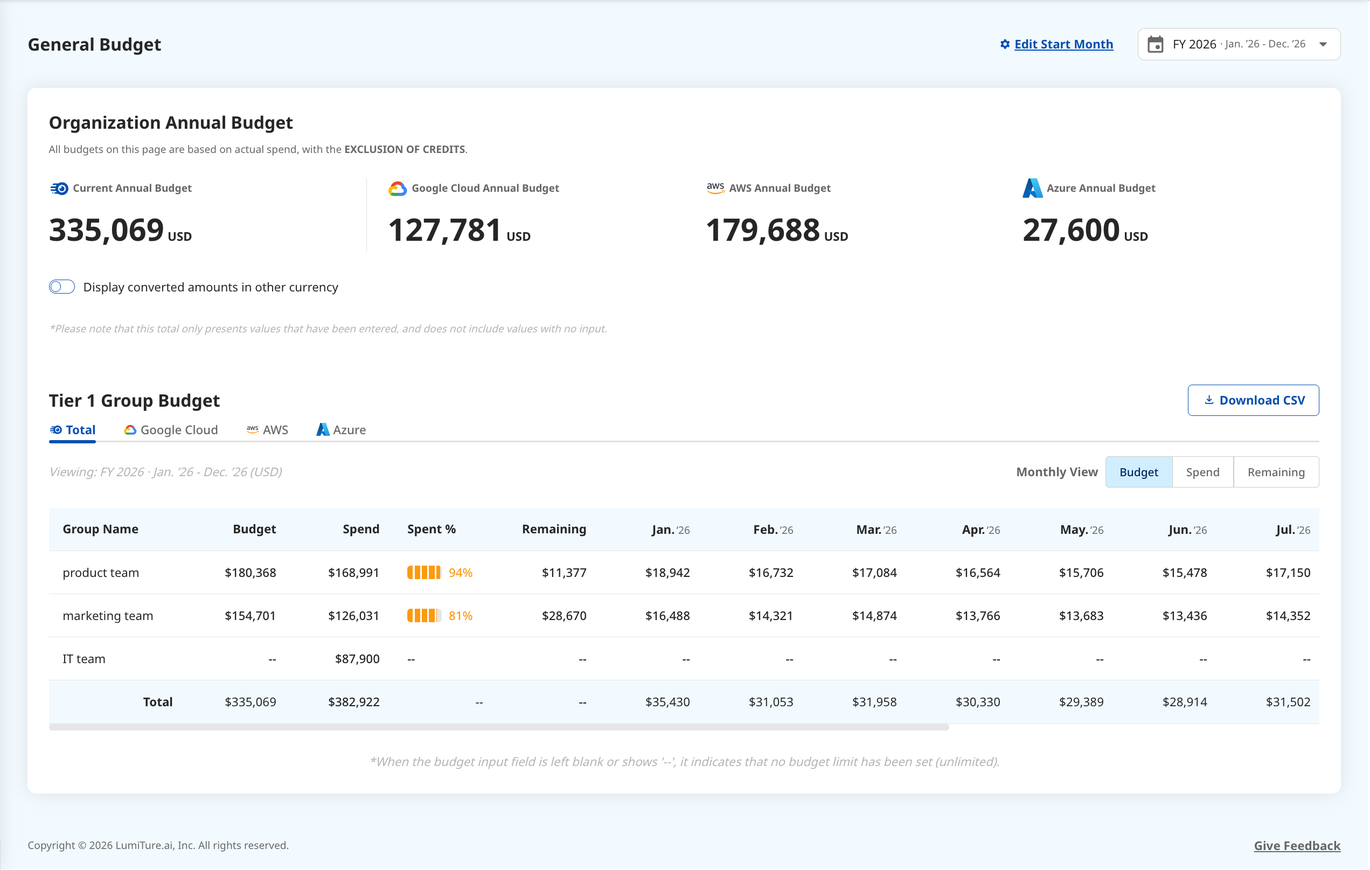
At the top, the Organization Annual Budget cards show your total annual budget and the per-cloud breakdown (Google Cloud / AWS / Azure). Edit Start Month sets your fiscal year, and the currency toggle lets you view converted amounts. The total reflects only values that have actually been entered; blank cells are not counted.
Setting budgets (top-down)
Section titled “Setting budgets (top-down)”Budgets are set one level at a time: Owner / Admin set the Organization total and allocate it to each Tier 1 Group; T1 Managers then allocate their Tier 2 Groups. You can only set the level directly below you.
Click Edit Budget to begin. The grid is locked until you do, and the running totals update live as you type. Three batch tools speed up the 12-month entry:
- Allocate: spread an amount evenly across the 12 months (applied to one group or split across all groups).
- Fill / Apply to all: copy a value into all 12 months of the selected groups.
- Rebalance within the Group: total a group’s entered values and spread them evenly across the 12 months (without crossing groups).
Each month’s lower-level total must be at or below that month’s parent cap, and the annual total cannot exceed the parent either, otherwise Save is blocked. A dash (—) means no cap set (unlimited on the platform’s side; teams still follow your internal allocation). Only half-width numbers are accepted.
Viewing budget vs. spend
Section titled “Viewing budget vs. spend”Switch the provider tabs (Total / Google Cloud / AWS / Azure) and the Monthly View (Budget / Spend / Remaining) to read the 12-month breakdown per group. The annual summary shows Budget / Spend / Spent % / Remaining together, and Download CSV exports the current fiscal year and provider tab (with the year and FY label in the file).
Budget alerts
Section titled “Budget alerts”Click Alert Settings (Owner / Admin only) to get an email when spend reaches a set percentage of the monthly budget (for example 60 / 80 / 90%). During setup, if a lower-level total exceeds its parent cap you’re blocked and warned; if the total falls short of the org budget by a configured amount you’re prompted but not blocked.
Permissions
Section titled “Permissions”| Role | Access |
|---|---|
| Owner / Admin | Set the Org total and T1 budgets, view everything, and manage Alert Settings |
| T1 Manager | Set budgets for their own T2 groups; view their own scope |
| T1 / T2 Member, T2 Manager | Read-only |
Notes & edge cases
Section titled “Notes & edge cases”| Situation | Behavior |
|---|---|
| Parent has no cap (—) | Lower levels can still be filled; if a cap set later is smaller than the total, it triggers a warning. |
| Lower-level total exceeds the cap | Save is blocked until it fits. |
| A non-numeric or full-width value is entered | Rejected with a warning. |
| A group has no authorized resources yet | You can still plan its budget: authorize the cloud account later. |