
Getting Started
Activate Account
本頁內容尚未翻譯。
Activate Account is how you set up your account the first time, after you’re invited by email. Once an Admin or Manager adds your email, you receive an activation email, set your name and password, and can then sign in with email and password.
Who this applies to
Section titled “Who this applies to”This flow is for users invited by email. Everyone invited this way goes through it (Owner / Admin / Manager / Member), and General users (Manager / Member) also fill in their name during activation. If you sign in with a company Google / Microsoft account, you don’t use this flow and never set a password — see SSO & MFA.
Set up your account
Section titled “Set up your account”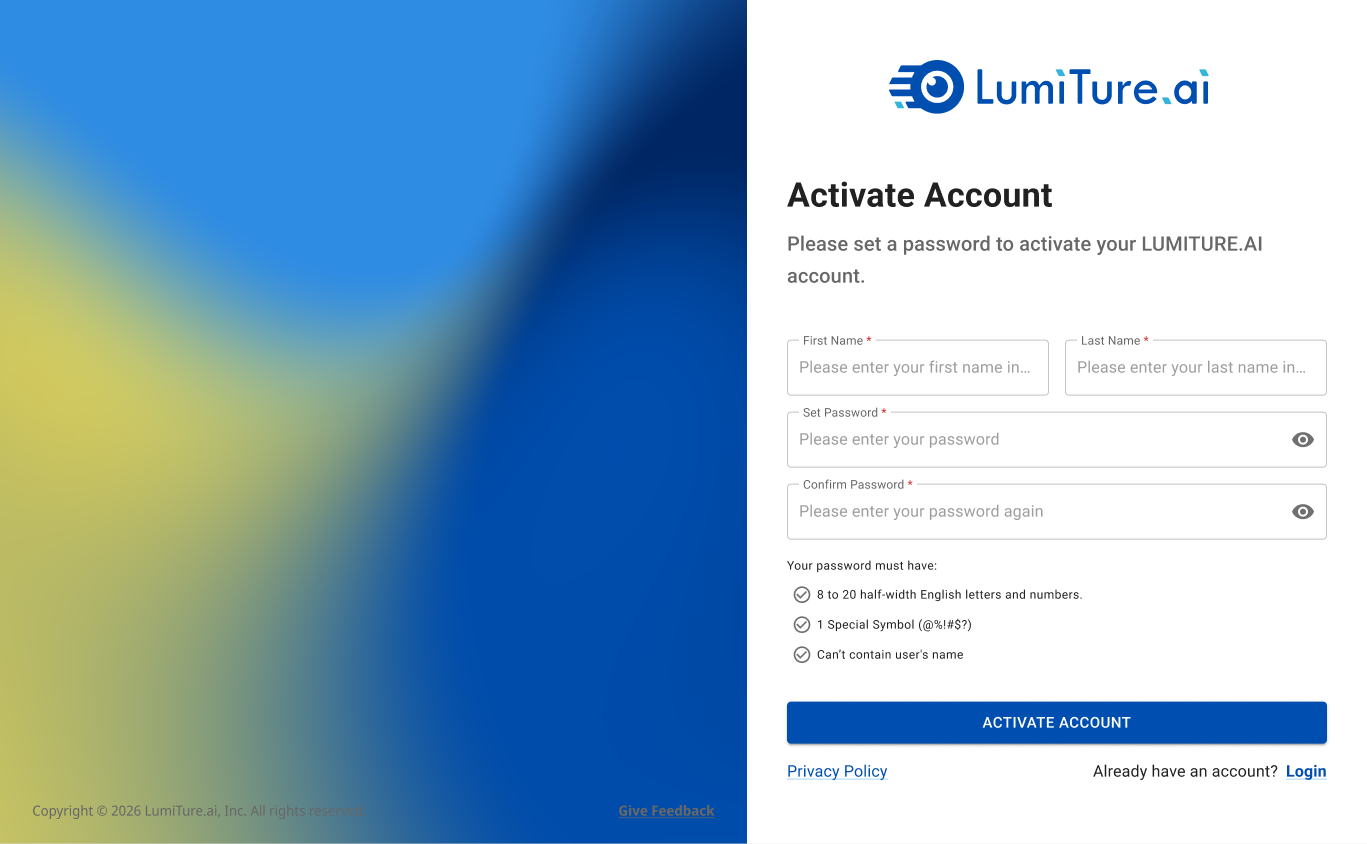
When your email is added to the system, LumiTure sends an activation email automatically. Open the link, then on the Activate Account page enter your First / Last Name and a password (with confirmation) and click Activate Account. You’re taken to the login screen, and your account status changes from Inactive to Active.
Password rules
Section titled “Password rules”- 8–20 half-width letters and numbers
- At least one special symbol (
@ % ! # $ ?) - Cannot contain your name
Both entries must match. Anything that doesn’t meet a rule is flagged in red, and you can’t activate until it’s fixed.
Name rules (General users)
Section titled “Name rules (General users)”First and Last Name are required, 1–30 characters each. No full-width characters or symbols, no mixing Chinese and English, and the first character can’t be a symbol (space, ., @, -, etc.).
The activation link
Section titled “The activation link”The activation link is valid for 5 days. If it expires, your account stays Inactive and the token is voided — the invite must be resent, to the same email, which maps back to the same account (so you don’t lose anything).
Notes & edge cases
Section titled “Notes & edge cases”| Situation | Behavior |
|---|---|
| The two passwords don’t match | You’re prompted to make them match; can’t activate. |
| Password or name breaks a rule | The offending field is flagged in red; can’t activate. |
| The link is older than 5 days | Token voided, account stays Inactive; an admin resends the invite. |
| You’re an SSO user | You skip activation and password setup entirely — sign in with Google / Microsoft. |