
Optimization
Rate Optimization
本頁內容尚未翻譯。
Rate Optimization lowers the unit price you pay for cloud resources. It finds commitment discounts (Savings Plans and Reserved Instances) that fit the usage you already have and shows how much each one would save you per month. LumiTure recommends only: you make the purchase in your own cloud console.
Where Usage Optimization asks whether you are running the right resources, Rate Optimization asks whether you are paying the right price for them.
Availability
Section titled “Availability”Rate Optimization is Owner / Admin only. Commitments are purchasing decisions, so the page is not shown to Managers or Members at all.
AWS is the only provider available today. Google Cloud and Azure appear in the data-source dialog but stay switched off until a later release.
Turn on your cloud data source
Section titled “Turn on your cloud data source”Rate Optimization stays empty until an Owner / Admin switches a provider on. AWS bills its own Cost Explorer API requests to your AWS account, so you opt in rather than having it enabled for you. LumiTure adds no charge of its own.
- Open Rate Optimization. Before any provider is on, the page explains that data sources are off by default.
- Click Unlock My Recommendations, or Data Sources in the top right once you are set up.
- Switch AWS on and click Save. If you want to know what AWS charges first, check AWS Cost Explorer pricing.
- Saving starts a sync, which usually takes a few minutes. You can leave the page and come back; recommendations and commitments appear once the sync finishes.
Read the three metrics
Section titled “Read the three metrics”The top of the page summarizes your commitment position.
| Metric | What it tells you |
|---|---|
| Coverage | The share of your eligible spend that commitments already cover. |
| Utilization | How much of the commitment capacity you own is actually being used. |
| Potential Monthly Savings | What you could save per month by acting on the recommendations below. The estimate is deliberately conservative. |
The header shows Last Updated and Next Update. Billing and usage data arrive a day behind, so these figures move once a day rather than in real time.
Recommendations
Section titled “Recommendations”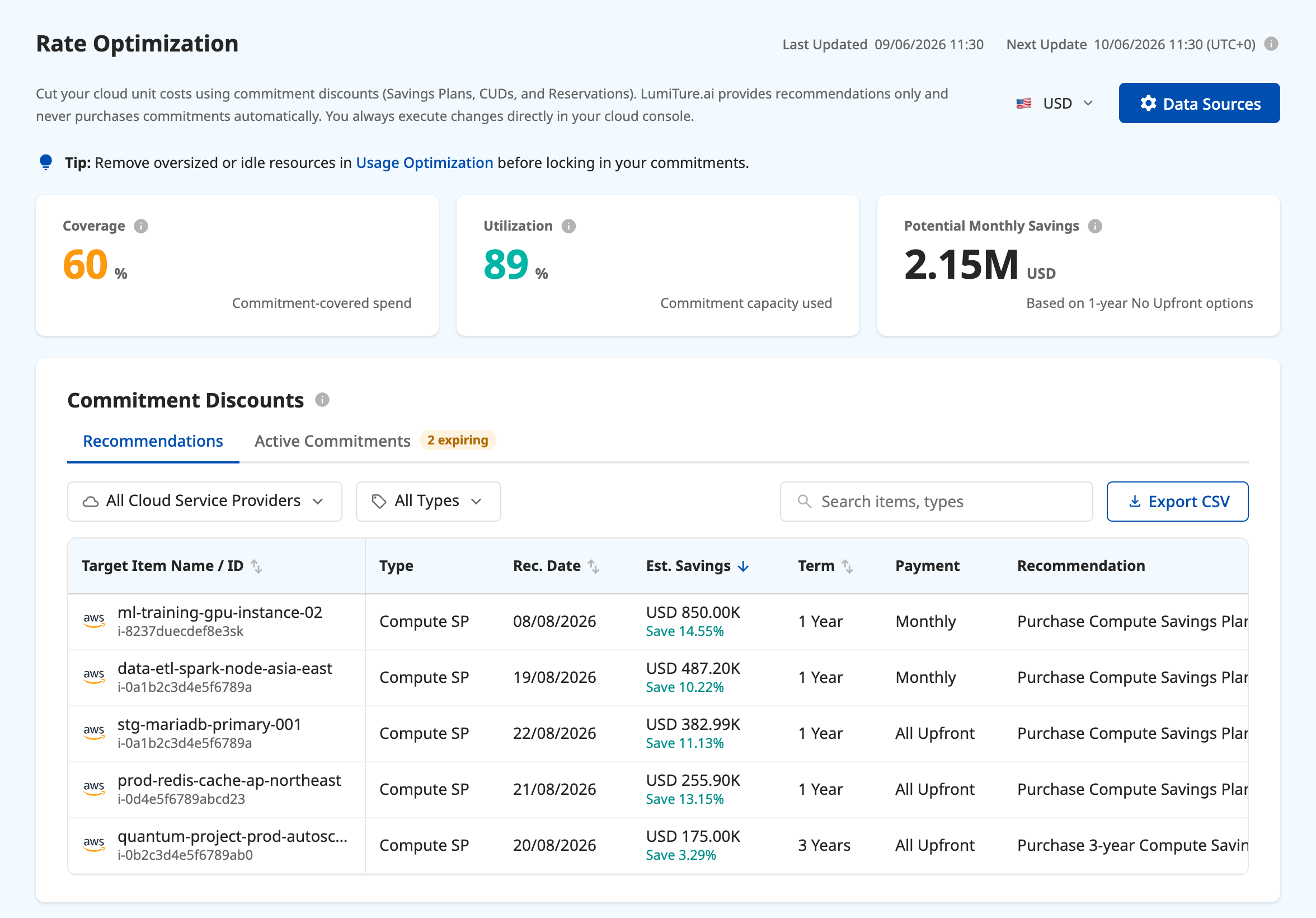
Each row is one commitment you could buy:
- Target Item — the resource or services the commitment would cover.
- Type — the kind of commitment, such as Compute SP, EC2 Instance SP, SageMaker SP, or Database SP.
- Rec. Date — when the recommendation was generated.
- Est. Savings — the estimated monthly saving in your currency, with the saving as a percentage of current cost.
- Term and Payment — 1 Year or 3 Years, and the payment option the estimate assumes.
- Recommendation — the action itself, for example purchasing a 1-year No Upfront Compute Savings Plan.
Rows are sorted by estimated saving, largest first. Filter by cloud provider or commitment type, search by name, and use Export CSV to take the current list away with you.
Active Commitments
Section titled “Active Commitments”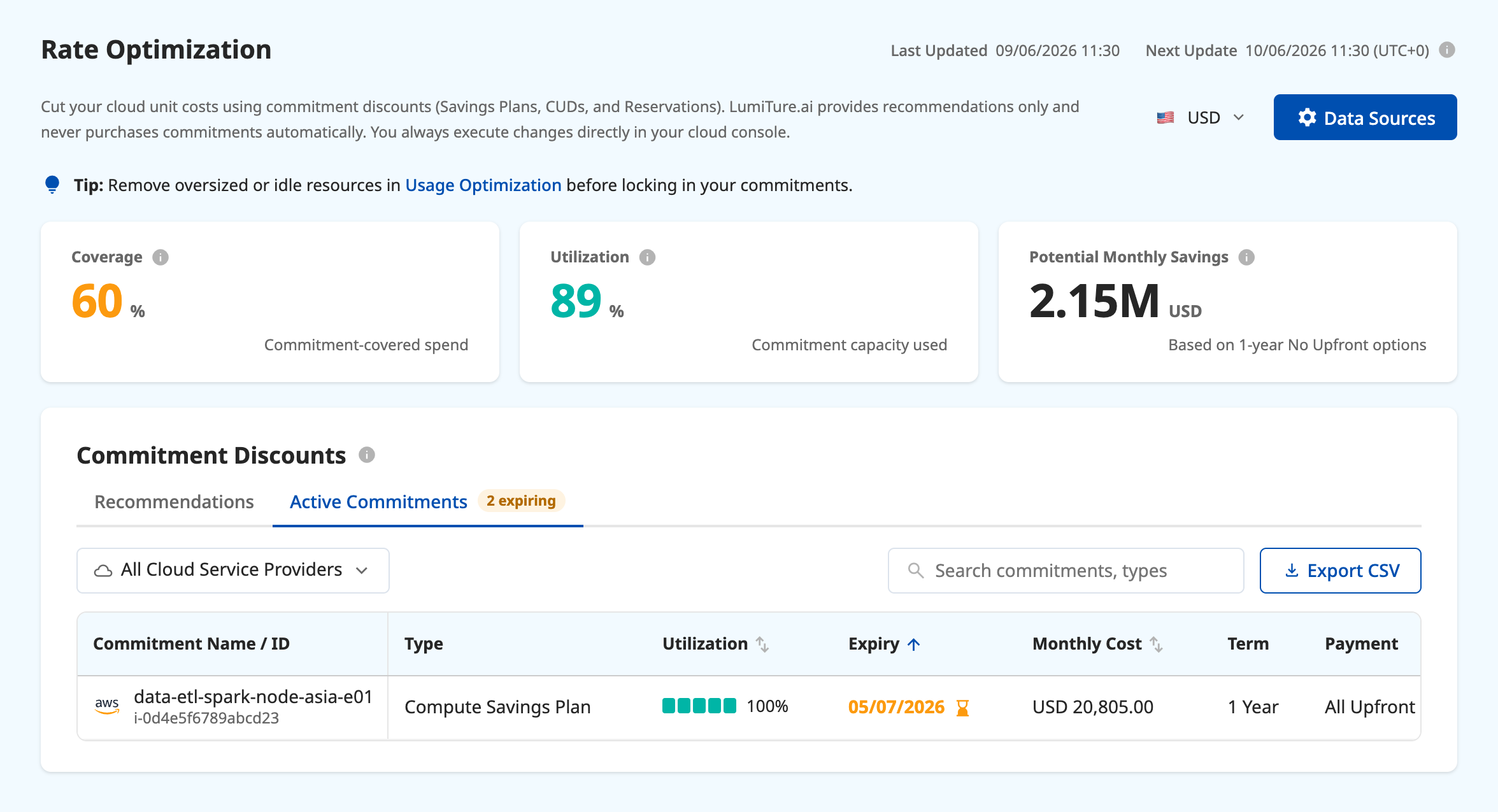
This view is an inventory rather than advice: the commitments you already own, with their name or ID, type, utilization, expiry date, monthly cost, term, and payment option. Commitments within 30 days of expiry are flagged as expiring, and the tab shows how many, so a renewal decision does not arrive as a surprise. Export CSV works here too.
Commitments you bought before you started using LumiTure are included, so the list reflects everything currently in effect.
Act on a recommendation
Section titled “Act on a recommendation”- Read the row’s Term, Payment, and Recommendation.
- Check that the workload is stable enough to carry the term you are committing to.
- Make the purchase in your cloud provider’s console. LumiTure never buys a commitment for you.
- After the next daily sync, the commitment appears under Active Commitments and your Coverage and Utilization move with it.
Notes & edge cases
Section titled “Notes & edge cases”| Situation | Behavior |
|---|---|
| No cloud account connected | The page prompts you to connect an account instead of showing an empty list. |
| Provider connected but not switched on here | Nothing syncs for that provider, and no API charges accrue on your cloud account. |
| Billing-account level access missing | That provider cannot produce commitment recommendations; the page tells you which level of billing access is needed. |
| Switched on but no usage yet | The metrics read 0 and the list is empty while data accumulates. |
| Not enough usage history | Some commitment types hold back until enough days of usage exist to judge them. |
| Provider switched off again | Syncing pauses and the last synced data stays visible. |