
Organization Settings
Group List
本頁內容尚未翻譯。
Group List is where you manage your organization’s two-tier group structure — the groups themselves, their members, and the cloud resources each group can see. Groups are the foundational unit for cost visibility and allocation in LumiTure: what you see in every cost, budget, and recommendation view is scoped to the resources assigned to your group.
Availability
Section titled “Availability”Group List is core IAM and is included on every plan. Access within it depends on your role and tier (see Permissions).
The Group List page
Section titled “The Group List page”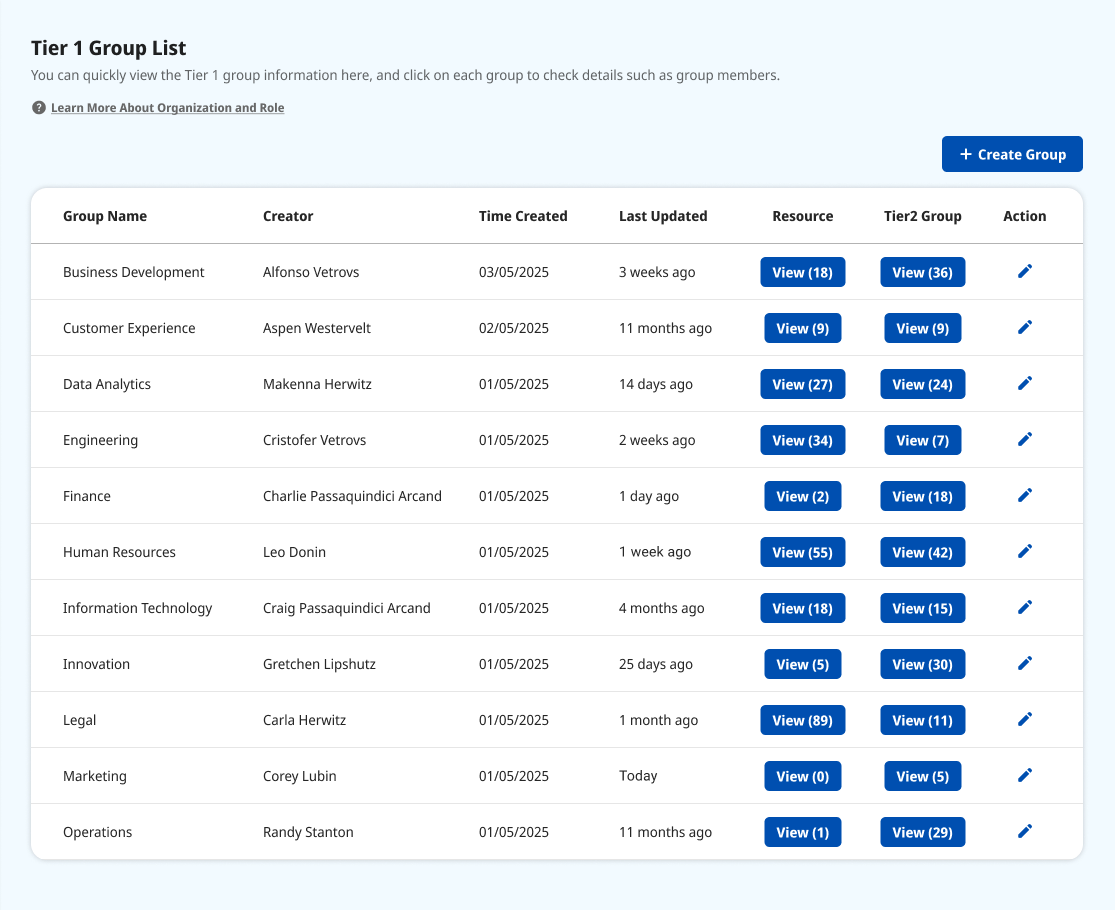
The list shows each group with its Group Name, Creator, Time Created, and Last Updated. From the columns on the right you can open a group’s Resource list and its Tier 2 Group list, edit it from the Action column, or add a new group with Create Group. Names sort numbers → letters → other scripts, A→Z, uppercase before lowercase.
Every group has three views:
- Groups — build, name, and delete the group tree (Tier 2 nested under Tier 1).
- Members (User List) — add members, change their role, and remove them.
- Resources (Resource List) — assign the cloud resources the group can see.
Creating a group
Section titled “Creating a group”Click Create Group and give it a Group Name (required, unique within your organization). Add one or more Managers by email — comma-separate to add several, and add a Manager first, since Members have no edit rights and gain nothing from being added before there’s anything to manage. When you create a Tier 2 group, you also assign the resources it should see. Group names must be unique in the org; a duplicate is handled at creation time.
Managing members
Section titled “Managing members”Open a group’s User List to see each member’s email, name, role, active status, and last login.
- Add members — choose a role (Manager or Member) and enter one or more emails; a batch must share the same role. An email must already exist in the system, cannot already belong to an Admin, and cannot be added to the same group twice.
- Update a role — switch a member between Manager and Member. You cannot change your own role.
- Remove a member — delete members one at a time, with confirmation.
Assigning resources
Section titled “Assigning resources”Open a group’s Resource List to assign resources already authorized to your organization. Each cloud has its own tab (GCP / AWS / Azure), and each tab has two tables:
- Account level — GCP Project / AWS Account / Azure Resource Group.
- Tag level — GCP Label / AWS Tag / Azure Tag.
Select resources to assign (the menu lists only resources not already assigned). To remove one, use Unlink — a separate action that supports selecting several at once. If unlinking would affect other Tier 2 groups, LumiTure shows the affected groups and asks you to confirm.
How group cost is calculated
Section titled “How group cost is calculated”A group’s spend covers everything its assigned Projects, Accounts, Resource Groups, Labels, and Tags reach, with overlaps counted only once. Assigning both a project and a label that lives inside it does not double-count that cost.
This rule drives group-based figures across Overview, Executive Insights, Cost Dashboard (by group), General Budget, Customized Budget, and the machines visible in Rightsizing.
Permissions
Section titled “Permissions”The core principle: you can manage your own tier and the tier below it, you cannot interfere with peers, and you cannot delete the group you belong to.
| Role | Groups (create / edit / delete) | Members | Resource assignment |
|---|---|---|---|
| Owner / Admin | All T1 / T2 across the org | All across the org | Assign / unlink anywhere |
| T1 Manager | Create / delete own T2 (not own T1) | Own T1 and direct T2 | Own direct T2 |
| T1 Member | Read-only | Read-only | Read-only |
| T2 Manager | Read-only (cannot delete own T2) | Own T2 members | Read-only |
| T2 Member | Read-only | Read-only | Read-only |
Notes & edge cases
Section titled “Notes & edge cases”| Situation | Behavior |
|---|---|
| Deleting a group with members | The delete button stays disabled — empty the member list first. |
| Deleting the group you belong to | Not allowed. |
| Adding someone who is already an Admin | Blocked — they can’t also be a group member. |
| No resources available to assign | The assign menu shows an empty state. |
| Read-only role | Assign / Unlink and group create / edit / delete controls are hidden. |