
Organization Settings
LumiTag
本頁內容尚未翻譯。
LumiTag (Virtual Tags) is a logical tagging layer that classifies your billing data by rule, without changing any cloud resources. It reduces unattributed cost and makes Showback, Chargeback, and forecasts more accurate.
Availability
Section titled “Availability”LumiTag is included on every plan, but the whole module is Owner / Admin only. Other roles don’t see “Virtual Tags” in the sidebar and get a 403 if they open the URL directly.
What it does
Section titled “What it does”Define a Virtual Tag as a key with one or more values; each value carries rules that automatically sort matching costs into it. Once applied, a tag becomes a dimension available in every cost report.
The three screens
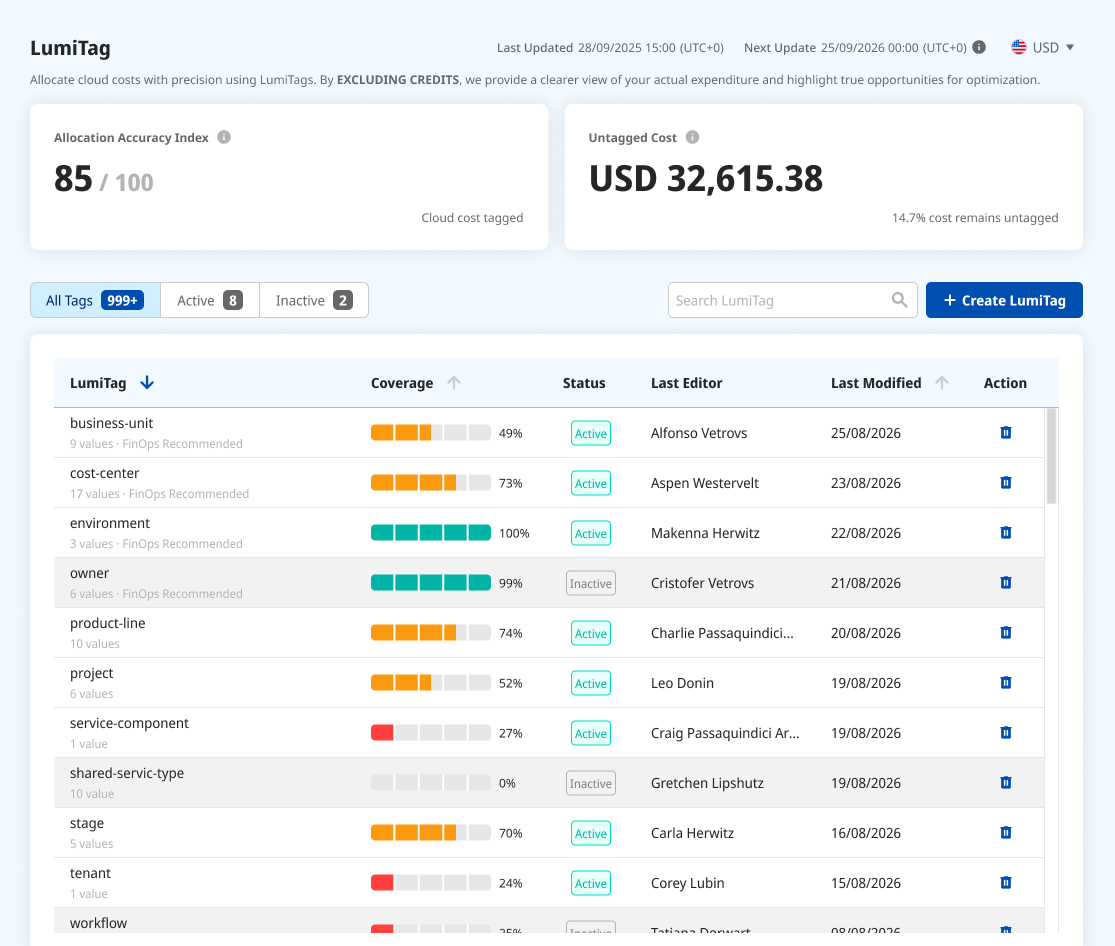
Section titled “The three screens”List: your tags with Coverage (allocated cost against total cost), Status, last editor, and last modified. Two metric cards sit on top: Allocation Accuracy Index (how much of your cost active tags allocate) and Untagged Cost (what is left unallocated). Tabs filter to All / Active / Inactive, and search filters by name.
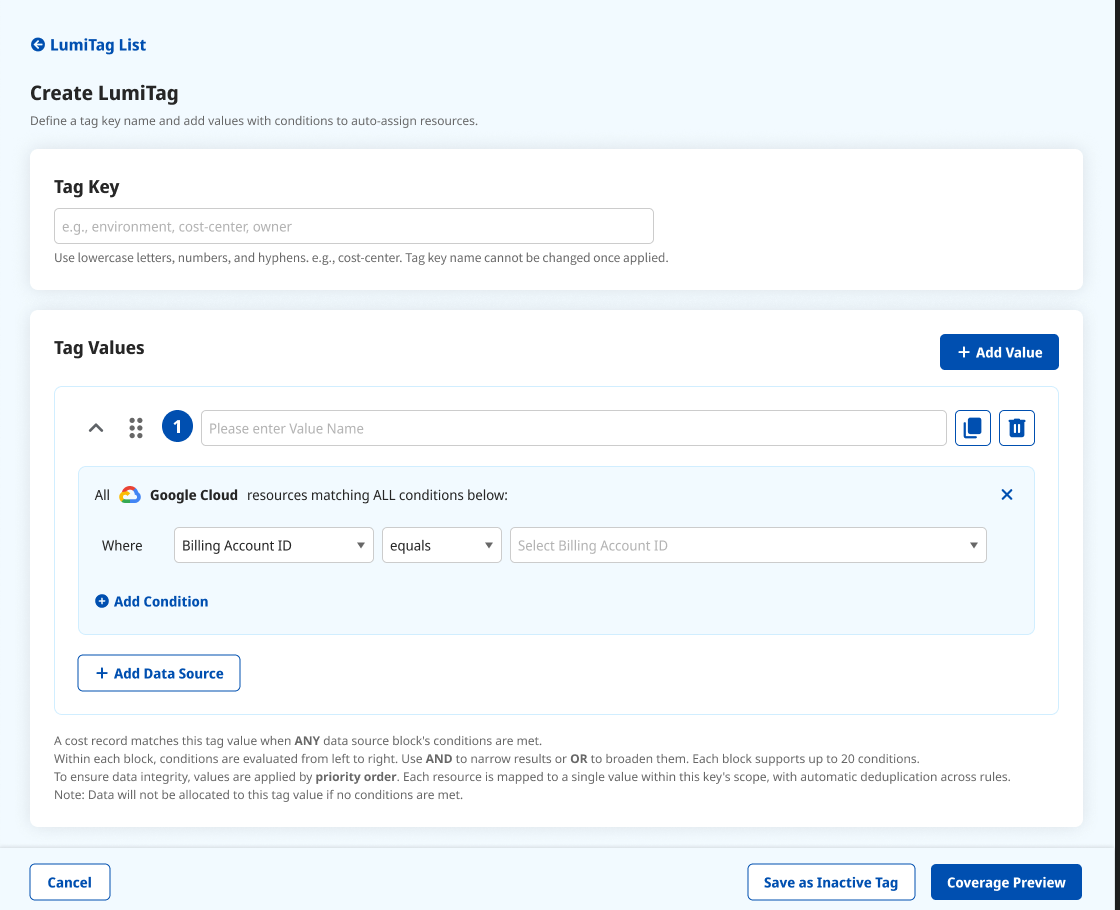
Create / Edit: name the tag key, then build its values:
- Tag Key Name: lowercase letters, numbers, and
-only; unique in the org. A set of FinOps-recommended presets is offered, each inactive until you apply it. - Values: one card each, drag to reorder (order is priority).
- Conditions:
WHERE [Field] [Operator] [Value], chained with AND / OR. Logic is evaluated left to right, soA or B and Cmeans(A or B) and C. Conditions use a single cloud’s native fields; cross-cloud fields aren’t supported. - A live Coverage Preview shows each value’s share and the untagged remainder as you build.
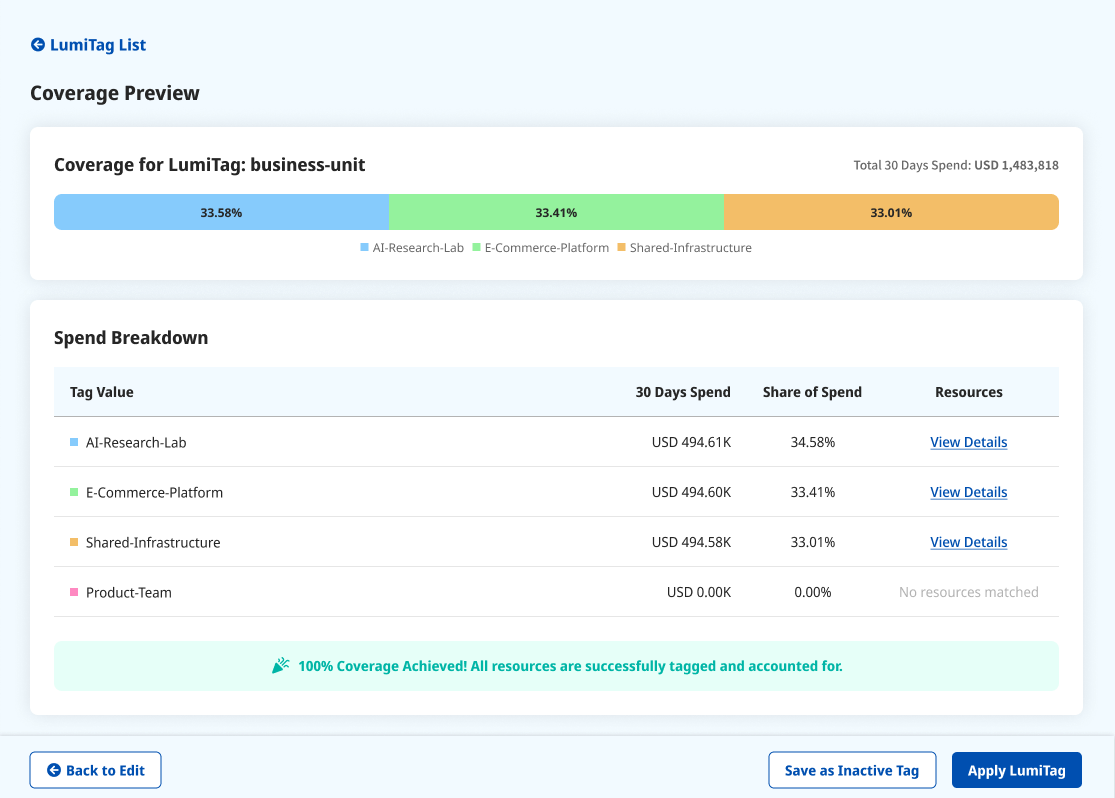
Preview: an allocation overview and a Tag Value Breakdown (value, 30-day cost, resources, % of total). Unclassifiable rows fall into Others; unmatched cost is Untagged. Finish with Back to Edit, Save as Inactive (kept out of reports), or Apply to Cost Reports (goes active and becomes a report dimension).
Key rules
Section titled “Key rules”- A tag key name is locked once it has been applied.
- A tag key has one active version; editing requires re-applying.
- Inactive tags don’t appear in cost reports.
- When a resource matches multiple values, the value order decides (the one higher in the list wins); there’s no separate conflict-detection prompt, so the order is how you resolve it.
- Coverage is measured by cost, not resource count.
Limits
Section titled “Limits”There are upper limits on how many tag keys you can create, how many values a key can hold, and how many conditions a value can carry. The relevant “add” button is disabled once a limit is reached.
Permissions
Section titled “Permissions”Owner / Admin only, for the entire module: create, edit, save as inactive, apply, and delete.
Notes & edge cases
Section titled “Notes & edge cases”| Situation | Behavior |
|---|---|
| A non-admin opens the page | Not shown in the sidebar; direct URL returns 403. |
| Duplicate tag key name | Flagged immediately; can’t be saved. |
| Editing a tag that was applied | Key name is locked; saving as Inactive removes it from reports until re-applied. |
| A resource matches several values | Resolved by value order (top wins). |
| Fully allocated (100%) | Shows Full coverage, with no Untagged row. |