
Getting Started
Navigation & Sidebar
本頁內容尚未翻譯。
The left sidebar is how you move around LumiTure. Items are grouped by feature and shown dynamically based on your role and subscription — you only see the features you have access to.
Structure
Section titled “Structure”Pages are grouped like this (the order matches the product’s sidebar):
| Group | Pages |
|---|---|
| Overview | Overview (your landing page after signing in) |
| Dashboard | Executive Insights, Cost Dashboard |
| Optimization | Usage Optimization, Rate Optimization |
| Budget Monitoring & Alert | General Budget, Customized Budget, Anomaly Detection |
| Organization Settings | Group List, LumiTag, Authorization List, Admin List, Audit Log |
What you see
Section titled “What you see”- By role — items render only for roles that can use them. For example, LumiTag appears only for Owner / Admin; other roles don’t see it in the sidebar at all.
- By plan — features your plan doesn’t include aren’t shown. Opening such a page’s URL directly redirects you to Overview.
- By release status — features that aren’t live yet aren’t listed until they ship.
Notes & edge cases
Section titled “Notes & edge cases”| Situation | Behavior |
|---|---|
| Your role can’t use a feature | That sidebar item isn’t rendered. |
| Your plan doesn’t include a feature | Not shown; opening its URL directly redirects to Overview. |
| A feature isn’t live yet | Not listed until it ships. |
The user menu
Section titled “The user menu”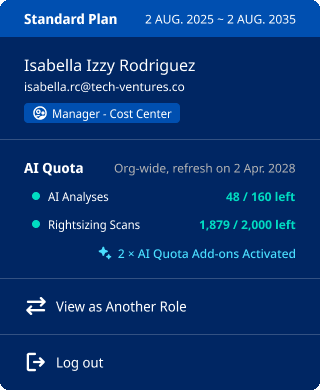
Open the menu from your avatar in the top-right corner. It’s where you check your organization’s status and handle account actions, and it’s the same for every role:
- Plan summary — your current subscription, plus any AI Quota add-on packs you’ve bought.
- Your account — your name, email, and current role.
- AI quota — how much AI usage your organization has left this cycle (see below).
- View as another role — preview LumiTure the way a different role sees it.
- Log out.
AI quota
Section titled “AI quota”AI features draw on a monthly, organization-wide allowance — everyone in your org sees the same remaining amount. The user menu shows a quota box with up to two meters:
- AI Analyses — used each time someone runs an AI analysis on the Cost Dashboard.
- Rightsizing Scans — used as the platform scans your resources for Usage Optimization.
Each meter shows remaining / total left and is colored by how much is left: green (plenty), amber (a heads-up as you near the limit), red (used up). The box also shows the date your quota next resets — quotas reset on the 1st of each month.
When a quota runs out:
- AI analyses — Run AI Analysis is blocked and a Limit Reached message appears.
- Rightsizing — scans pause until the next reset; existing recommendations stay visible but can’t be re-run.
To get more, open the used-up (red) item and follow Contact Sales to add an AI Quota pack.
Which meters you see depends on your plan: Standard shows both, Starter shows only the analyses meter.